Completing a Form as a Registered User
Use the following instructions to complete a form:
- Log in to the GoAnywhere Web Client.
- From the main menu, select Forms.
- On the Forms page, select a form to complete.
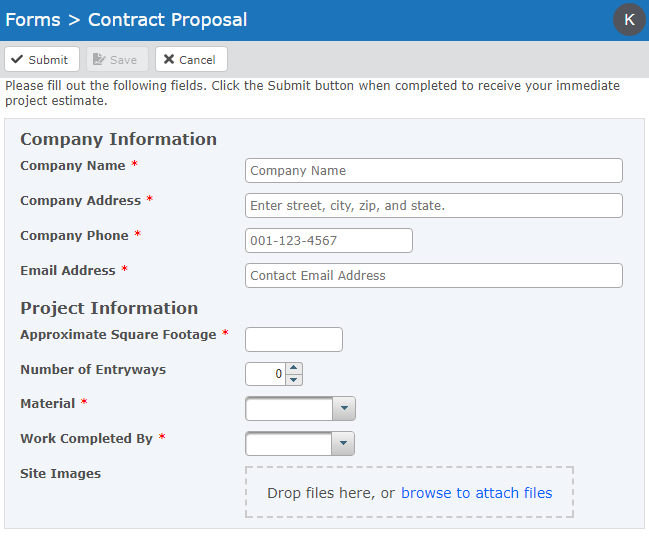
- Complete all the fields provided. Fields with a red asterisk are required.
- Drag and drop files from your desktop directly over the form to upload files, or click the browse to attach files link to upload files from your PC. The administrator may have limits to the number, type, and size of files that are being requested.
- Click the
 Submit button to submit your form for processing by GoAnywhere. Optionally, click the
  Save button to save the form to your Drafts folder, or click
  Cancel to return to the previous page.
 - Once your form is submitted, it can be viewed from the Submitted Forms page.
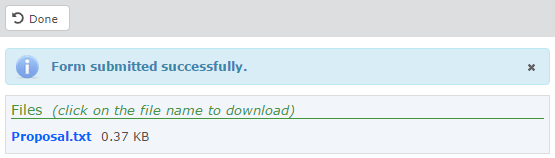
Form Output
After the form is submitted, GoAnywhere may return files for you to download on the form Output page. Select a file to download it. The output files will also be available from the Submitted Forms View page.